Need a computer that keeps up with your on-the-go lifestyle? Computers to go are designed for portability without sacrificing performance. This guide will help you find the best option, whether you’re working remotely, gaming, or just browsing.
Quick Answer: Computers to go typically cost $300 to $2,000, with laptops being the most popular choice [1]. For most users, a mid-range laptop ($600–$1,000) offers the best balance of performance and portability. Consider a tablet or 2-in-1 if you prioritize lightweight design.
The 5 Best Computers To Go for Every Need
Here are the top options for portable computing, each with unique strengths:
When evaluating portability, consider not just weight but also dimensions. Ultra-thin laptops, for example, often measure less than 12 inches in width, making them easier to fit into smaller bags. Tablets, while lighter, may still be bulkier due to larger screens.
When choosing the right computer to go, consider your primary use case. For instance, if you’re a digital artist, a gaming laptop might be worth the extra weight for its high-performance graphics. Conversely, a student might prioritize long battery life and lightweight design over processing power.
Another factor to consider is the operating system. Windows offers a wide range of software compatibility, while macOS is known for its seamless integration with other Apple devices. Chrome OS, found on many budget laptops, is lightweight and ideal for web-based tasks.
1. Ultra-Thin Laptops
These laptops are less than 0.7 inches thick and weigh 2–3 pounds, making them easy to carry. They often feature long battery life (8–12 hours) and solid performance for everyday tasks.
Trade-off: Limited ports and less powerful than bulkier models.
Best for: Students and professionals who need all-day portability.

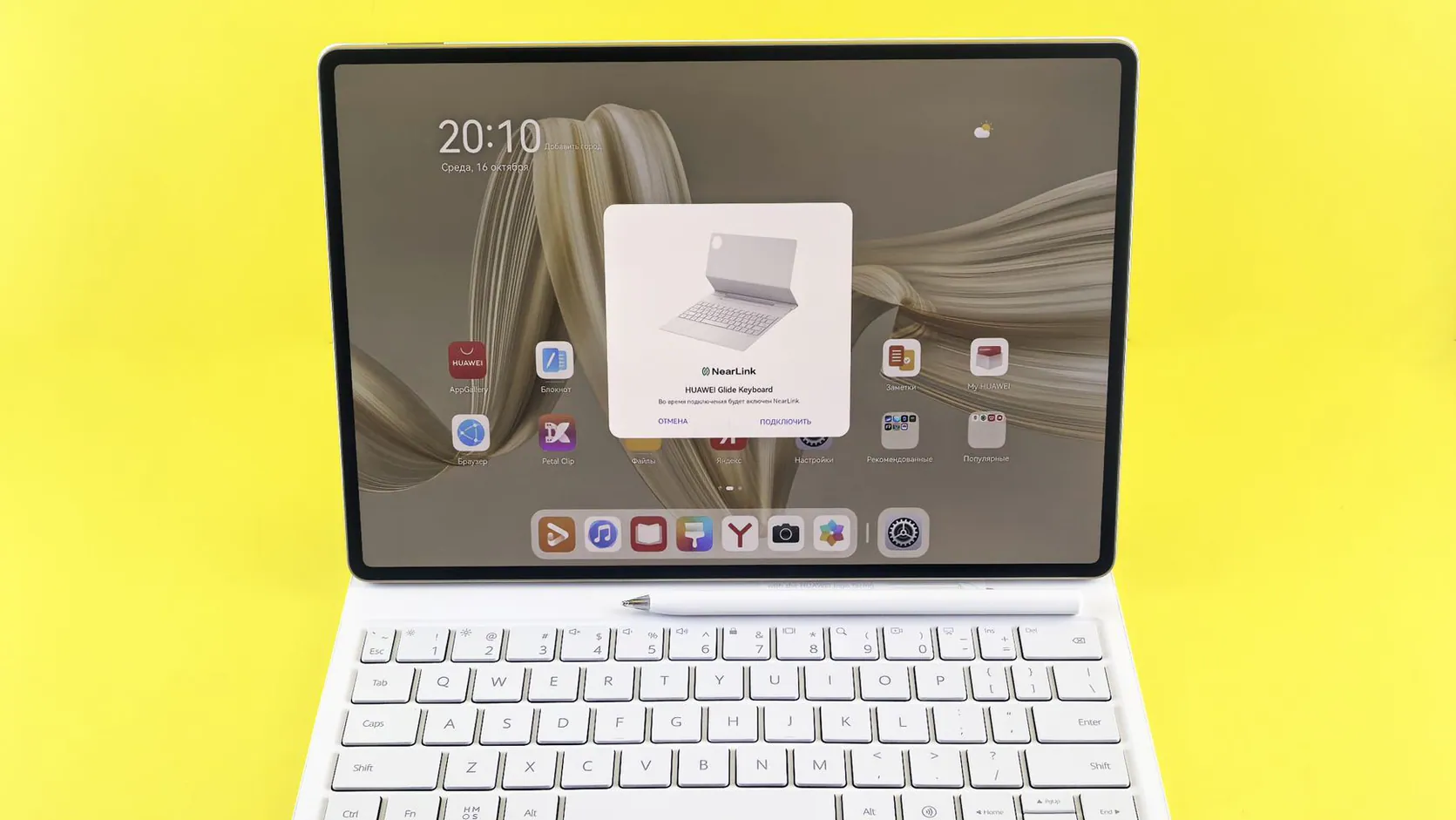
2. Tablets with Detachable Keyboards
Tablets like the iPad Pro or Surface Pro combine touchscreen convenience with laptop functionality when paired with a keyboard. They’re lightweight (1–1.5 pounds) and great for media consumption and light work.
Trade-off: Not as powerful as traditional laptops for heavy tasks.
Best for: Travelers and those who prefer a touchscreen interface.
3. Gaming Laptops
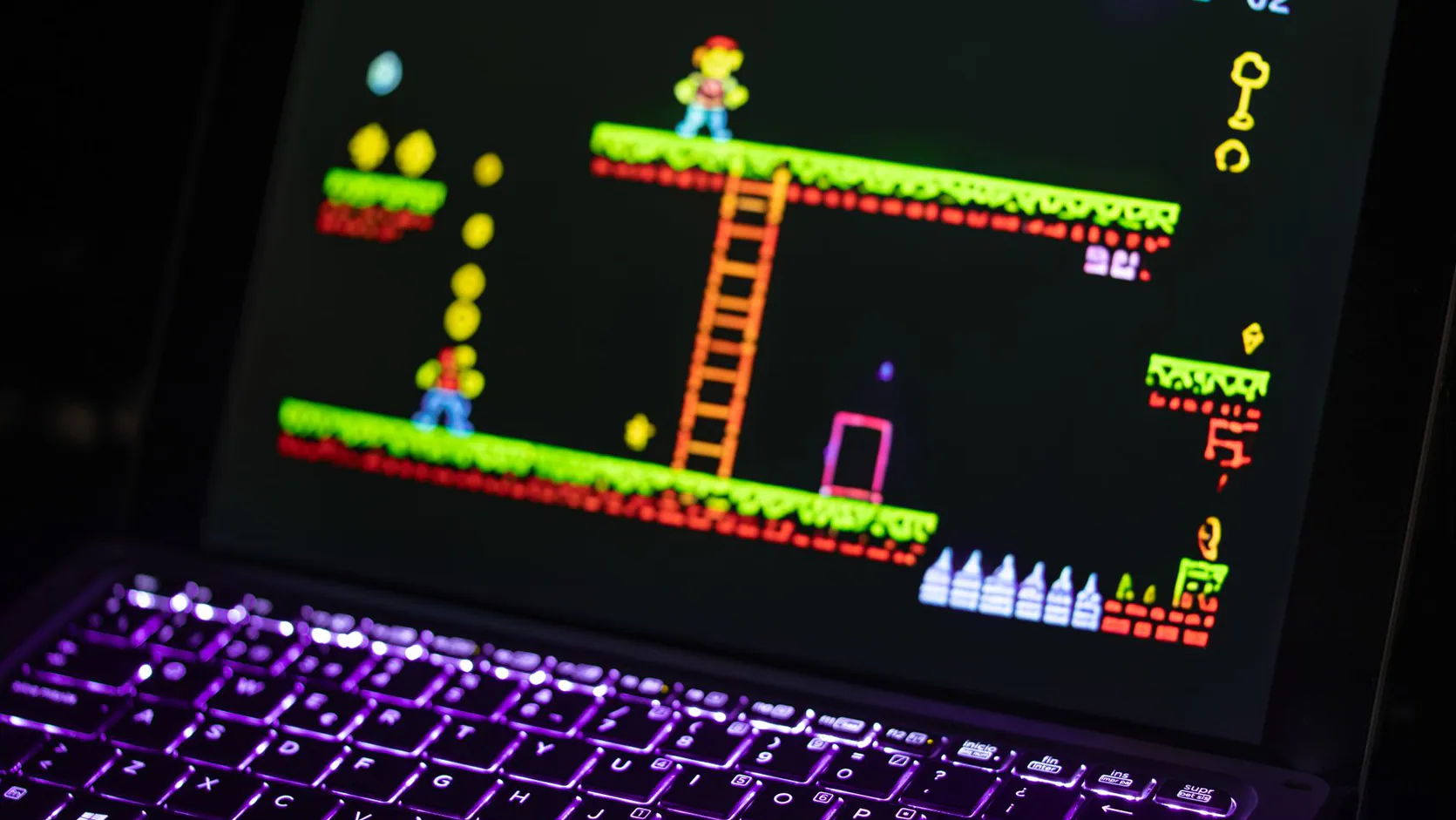
These machines pack high-end graphics cards and processors into portable designs (4–7 pounds). They’re ideal for gaming and creative work but have shorter battery life (3–6 hours).
Trade-off: Heavier and more expensive than other options.
Best for: Gamers and designers who need power on the move.
4. 2-in-1 Laptops
These devices flip or fold into tablet mode, offering flexibility for work and entertainment. They usually weigh 3–4 pounds and have decent battery life (6–10 hours).
Trade-off: Hinges can be less durable over time.
Best for: Users who want both laptop and tablet functionality.

5. Budget Laptops
Affordable options ($300–$600) for basic tasks like browsing and word processing. They’re lightweight (3–5 pounds) but may have shorter battery life (4–6 hours) and slower performance.
Best for: Casual users on a tight budget.
Computers To Go at a Glance
Here’s how the top options compare:
When comparing these options, think about your daily routine. If you’re frequently on the move, the weight difference between a 2-pound ultra-thin laptop and a 5-pound budget model can be significant. Similarly, if you often work in cafes or during commutes, a longer battery life can be a game-changer, reducing the need to carry a charger.
Screen resolution is another important factor. While most mid-range laptops offer Full HD (1920×1080), some ultra-thin and gaming models provide higher resolutions like QHD (2560×1440) or even 4K, which can enhance your viewing experience but may drain battery faster.
| Type | Cost | Weight | Battery Life | Best Use |
|---|---|---|---|---|
| Ultra-Thin Laptops | $600–$1,200 | 2–3 lbs | 8–12 hours | Everyday tasks |
| Tablets with Keyboards | $500–$1,500 | 1–1.5 lbs | 8–10 hours | Light work, media |
| Gaming Laptops | $1,000–$2,000 | 4–7 lbs | 3–6 hours | Gaming, design |
| 2-in-1 Laptops | $700–$1,300 | 3–4 lbs | 6–10 hours | Flexibility |
| Budget Laptops | $300–$600 | 3–5 lbs | 4–6 hours | Basic tasks |
*Cost and battery life estimates are based on typical mid-range models [2][3].*
Ultra-thin laptops offer the best overall balance, but tablets are ideal for lightweight needs, and gaming laptops excel in power.
More Computers To Go Tips
When it comes to port selection, consider your peripherals. If you frequently connect to external monitors, projectors, or storage devices, ensure your laptop has the necessary ports or that you have the right adapters. USB-C ports are becoming more common and can handle multiple functions, including charging, data transfer, and video output.
If you frequently work in low-light environments, consider a laptop with a backlit keyboard. This feature not only enhances visibility but also adds a premium feel to your device.
Battery life is crucial for portability. While manufacturers often advertise “up to” a certain number of hours, real-world usage can vary. Look for reviews that test battery life under typical workloads, such as web browsing, video streaming, and document editing. Some laptops also offer fast charging, which can be a lifesaver when you’re short on time.
Screen size is a trade-off between portability and productivity. A 13-inch screen is easy to carry and fits in most bags, but a 15-inch or larger screen can make multitasking more comfortable. If you often work with multiple windows open, a larger screen might be worth the extra weight.
- Consider a laptop stand or external keyboard and mouse for ergonomic setup when working at a desk.
- Invest in a high-quality backpack or sleeve with padded compartments to protect your device during travel.
- Regularly update your software and run antivirus scans to keep your computer secure and running smoothly.
Check Port Selection
Ensure your device has the ports you need (USB-C, HDMI, etc.) or invest in adapters.
Prioritize Battery Life
Look for models with at least 6 hours of battery life for all-day use.
Consider Screen Size
13–14 inches is ideal for portability, while 15–17 inches is better for multitasking.
Invest in a Good Case
Protect your device with a durable case, especially if you travel frequently.
Pro Tip: Always check the warranty and return policy before buying, as portable devices are more prone to damage during travel.
Choosing the Right Accessories for Your Computer To Go
Accessories can significantly enhance the functionality and portability of your computer to go. A good laptop stand can improve ergonomics, especially if you work long hours. External keyboards and mice can also make typing and navigation more comfortable, particularly for 2-in-1 laptops and tablets.
For those who travel internationally, a universal power adapter is a must-have. It ensures compatibility with different electrical outlets, so you can charge your device anywhere in the world.
For travelers, a portable power bank is essential, especially if your device has shorter battery life. Look for one with a high capacity (at least 20,000 mAh) and fast charging capabilities. A compact travel router can provide a secure internet connection in hotels or cafes, while a USB-C hub can expand your port options in a single, lightweight device.
Protective cases and sleeves are a must for anyone frequently on the move. Choose one with padding and water resistance to safeguard against drops and spills. For tablets and 2-in-1 laptops, a case with a built-in stand can add convenience and versatility.
How to Maintain Your Computer To Go
Regular maintenance can extend the life of your portable computer. Clean the screen and keyboard with a microfiber cloth and isopropyl alcohol to remove dust and grime. Use compressed air to blow out any debris from ports and vents. Additionally, keep your device cool by using a laptop cooling pad, especially during intensive tasks like gaming or video editing.
Conclusion
Computers to go come in various forms, each suited to different needs. Whether you prioritize weight, power, or price, there’s an option for you. Explore our recommendations to find the perfect fit.
Ready to upgrade your portable setup? Visit ipgoservices.com for more tech insights and solutions.
Frequently Asked Questions
What’s the lightest computer to go option?
Tablets with detachable keyboards are the lightest, typically weighing 1–1.5 pounds.
Can I game on a budget laptop?
Budget laptops can handle casual games but lack the power for modern AAA titles.
Are 2-in-1 laptops durable?
While convenient, their hinges can wear out faster than traditional laptops [3].
How long do portable computers last?
With proper care, most last 3–5 years, though gaming laptops may have shorter lifespans due to intense use.
How do I extend the battery life of my portable computer?
To maximize battery life, reduce screen brightness, disable unused connectivity features like Bluetooth and Wi-Fi when not in use, and close background apps that consume power.
Can I upgrade the components of a portable computer?
Some laptops allow RAM or storage upgrades, but ultra-thin and gaming models often have limited upgradeability due to their compact designs.
What should I look for in a warranty for a portable computer?
Look for a warranty that covers accidental damage, especially if you travel frequently, and check if it includes international coverage and quick turnaround times for repairs.
What is the best way to clean my portable computer?
Use a microfiber cloth and isopropyl alcohol for the screen and keyboard, and compressed air for ports and vents.
Can I use a laptop cooling pad with any portable computer?
Yes, most cooling pads are compatible with laptops and can help maintain optimal temperatures during heavy use.
References
[1] Computer Go. (n.d.). In Wikipedia. https://en.wikipedia.org/wiki/Computer_Go
[2] Müller, M. (2002). Computer Go. Artificial Intelligence. https://doi.org/10.1016/s0004-3702(01)00121-7
[3] Gelly, S., Kocsis, L., Schoenauer, M., Sébag, M., Silver, D., Szepesvári, C., & Teytaud, O. (2012). The grand challenge of computer Go. Communications of the ACM. https://doi.org/10.1145/2093548.2093574