
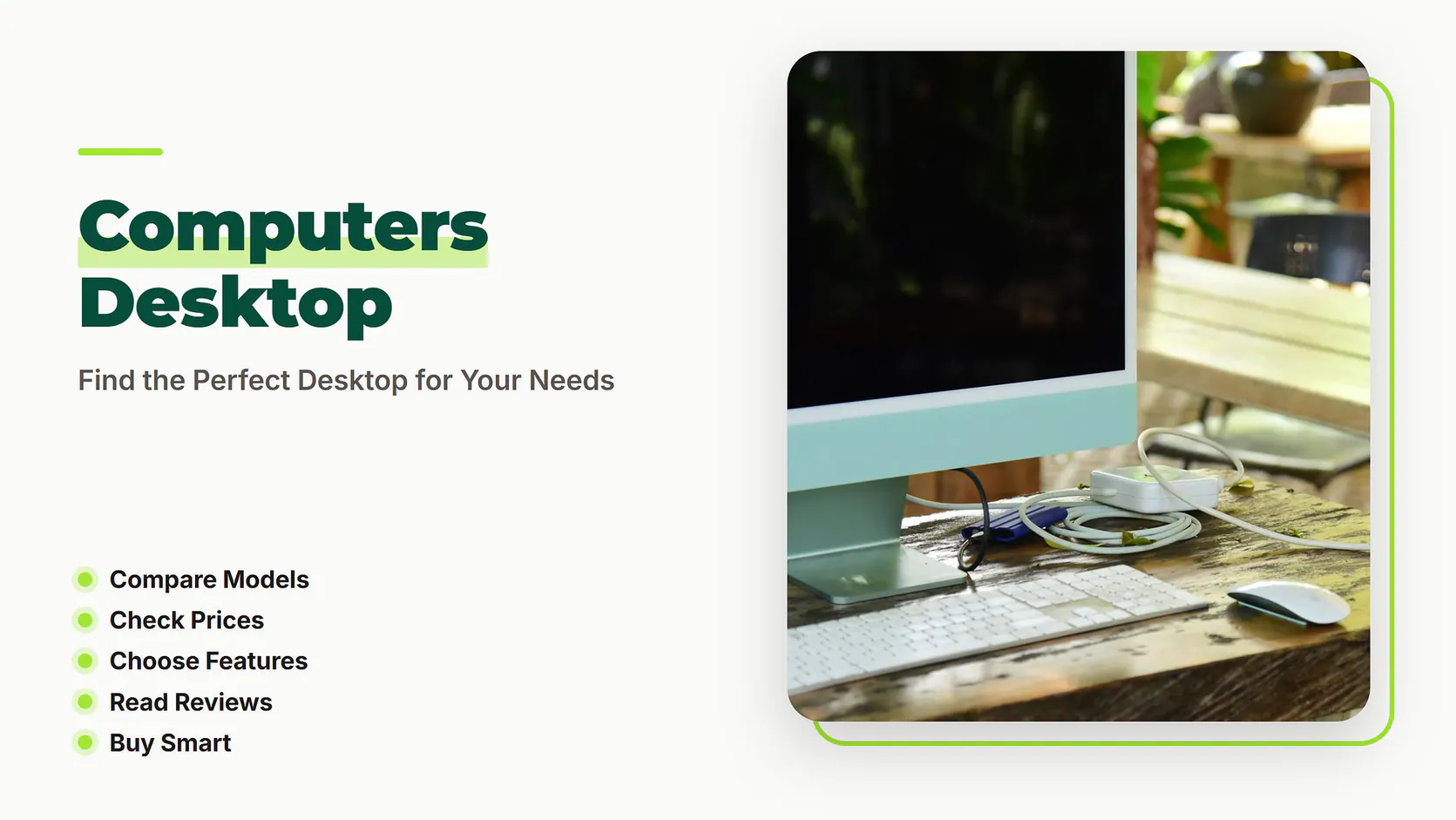
Ever wondered which computers desktop is right for you? Whether you’re working from home, gaming, or just browsing, choosing the right desktop can make all the difference. This guide will help you compare top options, understand their features, and find the perfect match for your needs.
Quick Answer: Computers desktop models range from $300 to $2,000, with lifespans of 5-10 years. For most users, a mid-range option like the Dell Inspiron offers a balance of performance and affordability [1].
The 5 Best Computers Desktop Options
Here are the top computers desktop choices, each tailored to different needs and budgets:
When choosing a desktop, consider the processor (CPU) as it significantly impacts performance. Budget options like the Acer Aspire often feature entry-level Intel Core i3 or AMD Ryzen 3 processors, suitable for basic tasks. Mid-range models, such as the Dell Inspiron, typically come with Intel Core i5 or Ryzen 5 processors, offering a balance for multitasking and light gaming. High-end desktops like the Alienware Aurora boast powerful Intel Core i7, i9, or Ryzen 7, 9 processors, ideal for demanding tasks like video editing and AAA gaming.
Another critical factor is the graphics card (GPU). Integrated graphics, found in budget and some mid-range models, handle everyday tasks but struggle with gaming or graphic design. Dedicated GPUs, like NVIDIA’s GTX or RTX series in the Alienware Aurora, deliver smoother gameplay and faster rendering for creative professionals. For all-in-one desktops like the Apple iMac, the GPU is often integrated but optimized for creative tasks, ensuring smooth performance in apps like Adobe Photoshop or Final Cut Pro.
- Budget Desktops: Integrated graphics (Intel UHD or AMD Radeon Vega)
- Mid-Range: Integrated or entry-level dedicated GPUs (NVIDIA GTX 1650)
- High-End: High-performance dedicated GPUs (NVIDIA RTX 3060 or higher)
1. Budget Desktop: Acer Aspire
The Acer Aspire is a cost-effective option, typically priced between $300 and $500. It’s great for basic tasks like browsing and word processing. Most models come with 4-8 GB of RAM and a 1 TB hard drive.

Best for: Students and casual users who need a reliable machine without breaking the bank.
2. High-Performance Gaming Desktop: Alienware Aurora
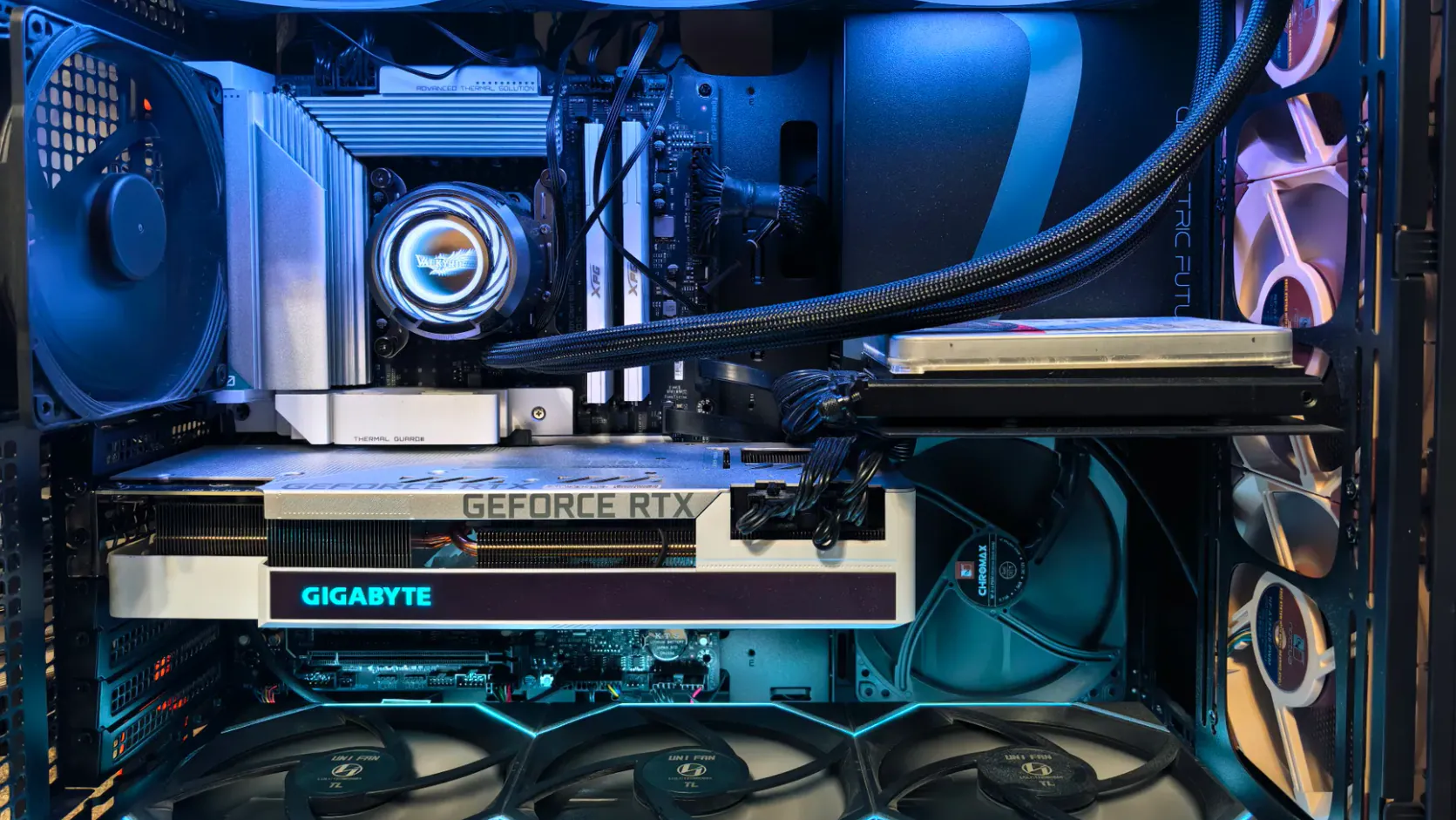
Priced between $1,500 and $2,500, the Alienware Aurora is a powerhouse for gamers and professionals. It features advanced graphics cards, up to 32 GB of RAM, and fast SSD storage [2].
Best for: Gamers and creative professionals who need top-tier performance.
3. All-in-One Desktop: Apple iMac
The Apple iMac, ranging from $1,000 to $2,000, combines a sleek design with powerful features. It’s ideal for graphic design, video editing, and everyday use, with a 21.5-inch to 27-inch Retina display.

Best for: Users who value aesthetics and performance in one package.
4. Mini Desktop: Intel NUC
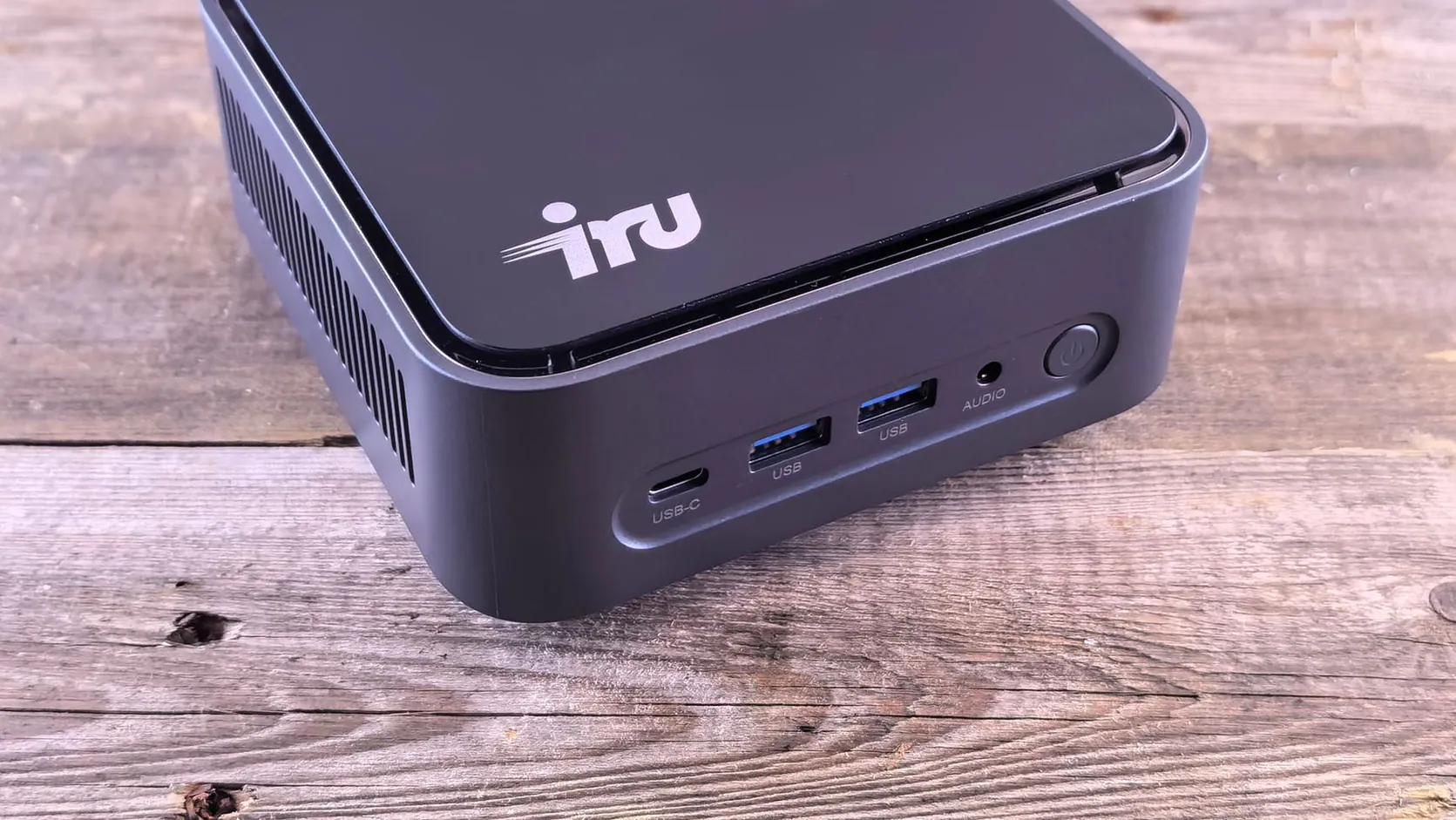
The Intel NUC is a compact option, priced between $300 and $700. Despite its small size, it offers decent performance with 8-16 GB of RAM and SSD storage, making it perfect for tight spaces.
Best for: Those with limited desk space who still want a capable machine.
5. Business Desktop: HP EliteDesk
The HP EliteDesk, priced between $600 and $1,200, is designed for office use. It includes security features, manageable performance, and a durable build, often with 8-16 GB of RAM and a 256 GB SSD.
Best for: Professionals needing a secure and reliable workstation.
Computers Desktop at a Glance
Here’s a quick comparison of the top computers desktop options:
When comparing desktops, consider the cooling system, especially for high-performance models. Gaming desktops like the Alienware Aurora often feature advanced cooling solutions, including liquid cooling, to prevent overheating during intense sessions. Business desktops like the HP EliteDesk prioritize quiet operation, using efficient fans to maintain productivity without distraction. Mini desktops like the Intel NUC rely on passive cooling, which is silent but may limit performance under heavy loads.
Connectivity is another key factor. Modern desktops typically include USB 3.0/3.1 ports, HDMI, and DisplayPort for monitors. High-end models may offer Thunderbolt 3/4 ports for faster data transfer and support for multiple 4K displays. For gamers, additional features like Ethernet ports for stable internet and audio jacks for headsets are essential. Business desktops often include legacy ports like VGA or serial ports for compatibility with older office equipment.
- Gaming Desktops: Ethernet, HDMI, USB 3.0, Thunderbolt (optional)
- Business Desktops: VGA, USB 3.0, Ethernet, DisplayPort
- Mini Desktops: USB 3.0, HDMI, limited ports due to size
| Model | Price Range | RAM | Storage | Best Use |
|---|---|---|---|---|
| Acer Aspire | $300-$500 | 4-8 GB | 1 TB HDD | Basic Tasks |
| Alienware Aurora | $1,500-$2,500 | 16-32 GB | 512 GB SSD | Gaming |
| Apple iMac | $1,000-$2,000 | 8-16 GB | 256 GB SSD | Creative Work |
| Intel NUC | $300-$700 | 8-16 GB | 256 GB SSD | Compact Spaces |
| HP EliteDesk | $600-$1,200 | 8-16 GB | 256 GB SSD | Business |
*Prices and specifications are based on average market trends and manufacturer data [1][2].
The Dell Inspiron stands out as the best overall pick for its balance of performance and affordability, making it suitable for most users.
More Computers Desktop Tips
When setting up your desktop, consider ergonomics to enhance comfort and productivity. Position the monitor at eye level to reduce neck strain, and use an adjustable chair to maintain proper posture. For all-in-one desktops like the Apple iMac, ensure the screen is tilted correctly to minimize glare. If using a separate keyboard and mouse, invest in ergonomic models to prevent wrist fatigue.
Cable management is often overlooked but crucial for a clean and functional workspace. Use cable ties, sleeves, or trays to organize wires, especially in compact setups like the Intel NUC. For gaming desktops with multiple components, modular power supplies and cases with built-in cable routing can significantly improve airflow and aesthetics. Labeling cables during setup can also save time during future upgrades or troubleshooting.
For users planning to expand their system, check the motherboard’s compatibility with future components. Some desktops, like the HP EliteDesk, offer tool-less access for easy upgrades, while others may require more technical skill. Ensure the power supply unit (PSU) can handle additional hardware, especially when adding high-power GPUs or multiple storage drives.
Consider Your Space
Measure your desk area before buying. Mini desktops like the Intel NUC are great for small spaces, while all-in-ones save on monitor setup.
Check Upgrade Options
Some models, like the HP EliteDesk, allow for easy RAM and storage upgrades, extending their lifespan.
Think About Portability
If you need to move your computer often, consider a mini desktop or a laptop instead.
Read Reviews
User reviews can highlight common issues and strengths, helping you make an informed decision.
Pro Tip: Always check the warranty and customer support options before purchasing, as these can vary significantly between brands.
Building vs. Buying a Desktop Computer
If you’re tech-savvy and enjoy customization, building your own desktop can be a rewarding option. Building allows you to choose specific components tailored to your needs, such as a high-end GPU for gaming or a powerful CPU for video editing. It also gives you the flexibility to upgrade individual parts over time, potentially extending the computer’s lifespan. However, building requires technical knowledge and can be time-consuming, with costs ranging from $600 to $3,000 depending on components.
Buying a pre-built desktop, like the Dell Inspiron or Alienware Aurora, offers convenience and warranty support. Pre-built systems are tested for compatibility, ensuring stable performance out of the box. They also come with customer support, which can be invaluable for troubleshooting. While pre-built desktops may cost slightly more than their DIY counterparts, they save time and provide peace of mind for less technical users.
- Pros of Building: Customization, potential cost savings, upgrade flexibility
- Cons of Building: Requires technical skill, no warranty on individual parts
- Pros of Buying: Convenience, warranty, tested compatibility
- Cons of Buying: Limited customization, higher cost for equivalent specs
Conclusion
Choosing the right computers desktop depends on your needs, budget, and space. From budget-friendly options to high-performance machines, there’s something for everyone. Explore more at ipgoservices.com to find the perfect fit.
Frequently Asked Questions
How long do desktop computers last?
Most desktop computers last 5-10 years with proper care and maintenance.
Can I upgrade my desktop’s RAM?
Yes, many desktops allow RAM upgrades, but check compatibility with your motherboard first.
Are all-in-one desktops worth it?
All-in-one desktops save space and reduce cable clutter, making them a good choice for clean setups [3].
What’s the difference between HDD and SSD?
SSDs are faster and more durable than HDDs but are more expensive per gigabyte of storage [2].
Can I use a desktop computer for video editing?
Yes, desktops like the Apple iMac or Alienware Aurora are excellent for video editing, offering powerful processors and dedicated GPUs.
How do I choose the right monitor for my desktop?
Consider resolution (1080p, 1440p, or 4K), panel type (IPS for color accuracy, TN for speed), and size (24-27 inches for most users).
Are gaming desktops suitable for work?
Yes, gaming desktops like the Alienware Aurora can handle work tasks efficiently, though they may consume more power and be noisier than business desktops.
References
[1] Lab., C. (. S. L. L. N., Krovchuck, K., & USDOE. (1996). Virtual supercomputing on Macintosh desktop computers [Report]. Lawrence Livermore National Laboratory. https://doi.org/10.2172/576750
[2] Gui, D. (2020). The computer desktop image compression based on clustering algorithm. Concurrency and Computation Practice and Experience. https://doi.org/10.1002/cpe.5892
[3] Straker, L. M., Coleman, J. L., Skoss, R., Maslen, B. A., Burgess-Limerick, R. J., & Pollock, C. M. (2008). A comparison of posture and muscle activity during tablet computer, desktop computer and paper use by young children. Ergonomics. https://doi.org/10.1080/00140130701711000