
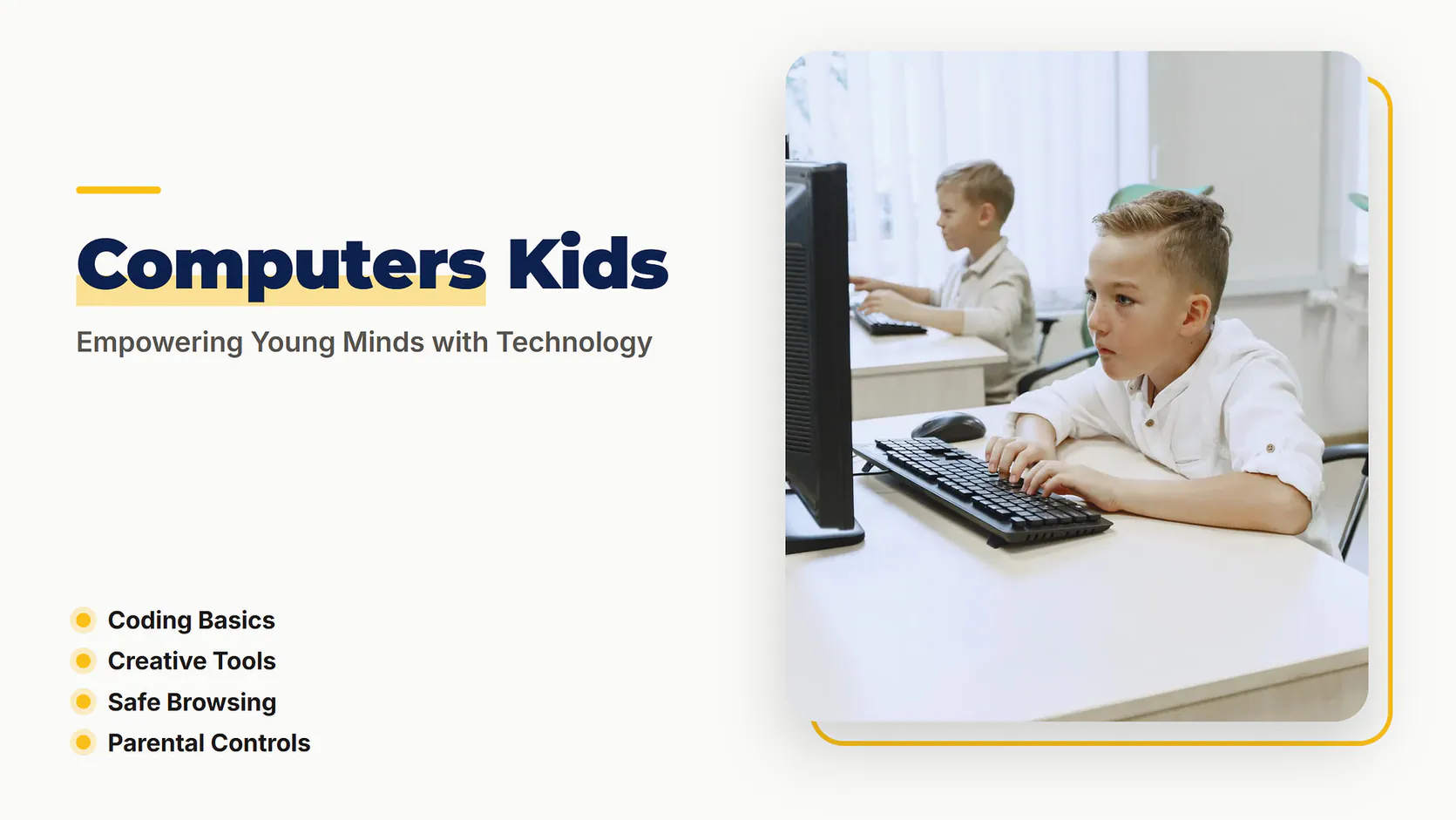
Computers kids are becoming an essential part of modern education, but how do you introduce technology in a way that’s both safe and beneficial? This article explores the best methods to help your child learn and grow with computers, from coding basics to creative tools.
Quick Answer: Computers kids can start with basic coding apps like Scratch (ages 5-12, free) or explore creativity with tools like Canva (ages 8+, free). Set up parental controls and limit screen time to 1-2 hours daily for a balanced approach [1][2].
5 Best Ways to Introduce Computers to Kids
Here are five proven methods to help your child learn and enjoy technology:
When introducing computers to kids, it’s important to match the activity to their interests and developmental stage. For instance, younger children (ages 3-6) might enjoy interactive storytelling apps like Epic!, which offers a library of books and videos tailored to their age. Older kids (ages 10-12) could benefit from typing tutorials like TypingClub, which builds a foundational skill for digital literacy. Consider rotating activities to keep engagement high—for example, alternating between coding and creative tools to avoid burnout.
Another effective approach is to incorporate real-world applications. For coding, encourage kids to create simple games or animations that they can share with friends or family. For creative tools, suggest designing birthday cards or posters for school projects. This not only reinforces learning but also shows the practical value of these skills.
1. Coding Basics
Start with simple coding platforms like Scratch, which teaches logic and problem-solving through drag-and-drop blocks. It’s free and ideal for ages 5-12 [2].
Beyond Scratch, there are other coding platforms tailored to different age groups and interests. For younger kids (ages 5-8), Code.org offers fun, interactive lessons featuring popular characters like Anna and Elsa from Frozen. For older kids (ages 10-14), Tynker provides more advanced coding challenges, including game design and app creation. These platforms often include progress tracking, allowing parents to monitor their child’s development.
Coding isn’t just about creating games—it’s a gateway to understanding how technology works. Encourage kids to think critically by asking questions like, “How could we make this program better?” or “What would happen if we changed this part of the code?” This fosters problem-solving skills and creativity.
- Start with short, 15-20 minute sessions to maintain focus.
- Celebrate small achievements, like completing a coding challenge or debugging a program.
- Connect coding to real-life examples, such as how apps they use are built.

Best for: Kids who love puzzles and logical challenges.
2. Creative Tools
Apps like Canva or Procreate let kids express themselves through digital art and design. Canva is free and user-friendly for ages 8 and up [1].
Creative tools can extend beyond digital art into other areas like video editing and music production. For kids interested in video, iMovie (free for Apple users) is a user-friendly option for creating short films or slideshows. For music enthusiasts, GarageBand (also free for Apple users) allows kids to compose their own songs using virtual instruments. These tools not only spark creativity but also teach technical skills like editing and sequencing.
To make the most of creative tools, provide kids with open-ended projects. For example, challenge them to design a logo for a fictional company or create a storyboard for a short animation. This encourages independent thinking and allows them to take ownership of their work. Additionally, consider setting up a digital portfolio where kids can showcase their creations, boosting their confidence and sense of accomplishment.

Best for: Artistic kids who enjoy drawing and designing.
3. Safe Browsing
Use kid-friendly browsers like KidzSearch to filter inappropriate content. Pair it with parental controls for added safety [3].
While kid-friendly browsers like KidzSearch are a great start, it’s equally important to educate kids about online safety. Teach them to recognize suspicious links or pop-ups and explain why they should never share personal information online. Role-playing scenarios, such as what to do if they encounter something inappropriate, can help them feel prepared. Additionally, discuss the concept of a “digital footprint” and how their online actions can have long-term consequences.
For added security, consider using a family-friendly VPN to protect your child’s data while browsing. Some routers also come with built-in parental controls that can filter content across all devices connected to your home network. Regularly review browsing history together to ensure your child is navigating the internet safely and responsibly.
Best for: Younger children exploring the internet.
4. Parental Controls
Tools like Qustodio or Norton Family help limit screen time and monitor activity. Most cost $50-$100 per year [1].
Parental control tools vary in features, so choose one that aligns with your family’s needs. For instance, Net Nanny includes a feature that blocks access to certain apps during homework hours, while Bark focuses on monitoring social media and messaging apps for potential issues like cyberbullying. Some tools even allow you to set different rules for each child based on their age and maturity level.
It’s also important to have open conversations about why these controls are in place. Explain that they’re not meant to restrict freedom but to ensure safety and balance. Encourage kids to come to you if they feel a rule is unfair or if they encounter something upsetting online. This builds trust and helps them understand the importance of digital boundaries.

Best for: Parents wanting to manage screen time effectively.
5. Educational Games
Platforms like ABCmouse or Kahoot! combine learning with fun, covering subjects like math and science. Prices range from free to $10/month [2].
Educational games can be tailored to specific subjects or skills, making them a versatile tool for learning. For math, Prodigy turns problem-solving into an adventure game, while DragonBox teaches algebra through puzzles. For language skills, Duolingo ABC combines reading and writing with interactive lessons. Many platforms also offer progress reports, allowing parents to track their child’s improvement over time.
To maximize the benefits of educational games, integrate them into your child’s daily routine. For example, set aside 20 minutes after school for game-based learning or use them as a reward for completing homework. Pairing these games with real-world activities, like cooking (for fractions) or outdoor scavenger hunts (for vocabulary), can reinforce concepts in a practical way.

Best for: Kids who learn best through play.
Computers Kids at a Glance
Here’s a quick comparison of the options:
| Option | Cost | Age Range | Best Use |
|---|---|---|---|
| Coding Basics | Free | 5-12 | Logic and Problem-Solving |
| Creative Tools | Free | 8+ | Art and Design |
| Safe Browsing | Free | All Ages | Internet Safety |
| Parental Controls | $50-$100/year | All Ages | Screen Time Management |
| Educational Games | Free-$10/month | 3-12 | Learning Through Play |
*Costs and age ranges are based on popular platforms and average pricing [1][2][3].
Coding basics and educational games are the most cost-effective options, while parental controls offer the best safety features.
More Computers Kids Tips
In addition to screen time limits, consider creating a “tech-free zone” in your home, such as the dining area or bedrooms, to encourage face-to-face interaction and better sleep habits. Use a timer to signal when screen time is over, reducing arguments and helping kids develop time management skills. For older kids, involve them in setting their own screen time rules, fostering a sense of responsibility.
When teaching digital etiquette, discuss the impact of online actions on others. For example, explain how a kind comment can brighten someone’s day, while a hurtful one can have lasting effects. Encourage empathy by asking, “How would you feel if someone said that to you?” Regularly revisit these conversations as your child grows and encounters new online situations.
Set Screen Time Limits
Limit daily screen time to 1-2 hours for kids under 12 to prevent overuse [1].
Encourage Breaks
Remind kids to take a 10-minute break every hour to rest their eyes.
Teach Digital Etiquette
Explain the importance of kindness and privacy online from an early age [3].
Explore Together
Spend time learning new apps or games with your child to bond and guide them.
Pro Tip: Start with free platforms to see what interests your child before investing in paid tools.
Conclusion
Introducing computers kids to technology doesn’t have to be overwhelming. With the right tools and guidance, you can help your child develop valuable skills while staying safe online. Explore these options to find the perfect fit for your family.
Ready to get started? Visit ipgoservices.com for more tips and resources on computers kids.
Frequently Asked Questions
What age should kids start using computers?
Most experts recommend starting around age 3-5 with supervised, limited use [2].
Are computers safe for young kids?
Yes, with parental controls and kid-friendly content, computers can be safe and educational [1].
How much screen time is too much?
Limit screen time to 1-2 hours daily for kids under 12 to prevent overuse [1].
Can computers help kids learn?
Absolutely! Educational apps and games can enhance learning in subjects like math and science [2].
How can I make computer time educational and fun?
Combine learning apps with creative projects, like coding a simple game or designing a digital poster, to keep kids engaged and motivated.
What are signs of too much screen time?
Look for irritability, difficulty sleeping, or a drop in academic performance—these could indicate excessive screen use.
Can computers help with social skills?
Yes, multiplayer educational games or collaborative coding projects can teach teamwork and communication in a digital setting.
References
[1] IPad kid. (n.d.). In Wikipedia. https://en.wikipedia.org/wiki/IPad_kid
[2] Shofa, M. F. (2023). Pengembangan Literacy Digital Anak Usia Dini Melalui Pembelajaran Computer Kids. Early Childhood Research Journal (ECRJ). https://doi.org/10.23917/ecrj.v6i2.23331
[3] Batson, E. (1984). Kids and computers. Postgraduate Medicine. https://doi.org/10.1080/00325481.1984.11698767